The AutoSelect URL allows you to integrate other applications to InfoMap and select map objects in a map. Examples of use are linking a property and rating system like MagiQ Enterprise to your internal maps and selecting a parcel, or linking an asset system like AssetFinda and selecting an asset in a map.
Configuring AutoSelect #
The AutoSelect URL has a number of parameter values that you need to configure in your final URL. An example is https://wairoa.infomap.co.nz/?map=337660dbbea24a448f8ec4d65f0e6bcb&extent=176.029816,-39.343856,178.663788,-38.544943&autoselect=Parcel|Parcel_ID|4159110
Parameter Values #
- Layer Short Name or Layer Title e.g. Parcel
- The Layer Field you want to pass a value to e.g. Parcel ID
- The ID you want to pass e.g. 4159110
NOTE – Generally the ID field is what the external applications like MagiQ or AssetFinda will generate and append it to the AutoSelect URL.
How to find the Parameter Values #
In the InfoMap CMS you can find the Parameter Values by:
- Open the InfoMap CMS
- Click on the Maps menu on the left
- Select the map that has the layer that you want to make the AutoSelect URL for
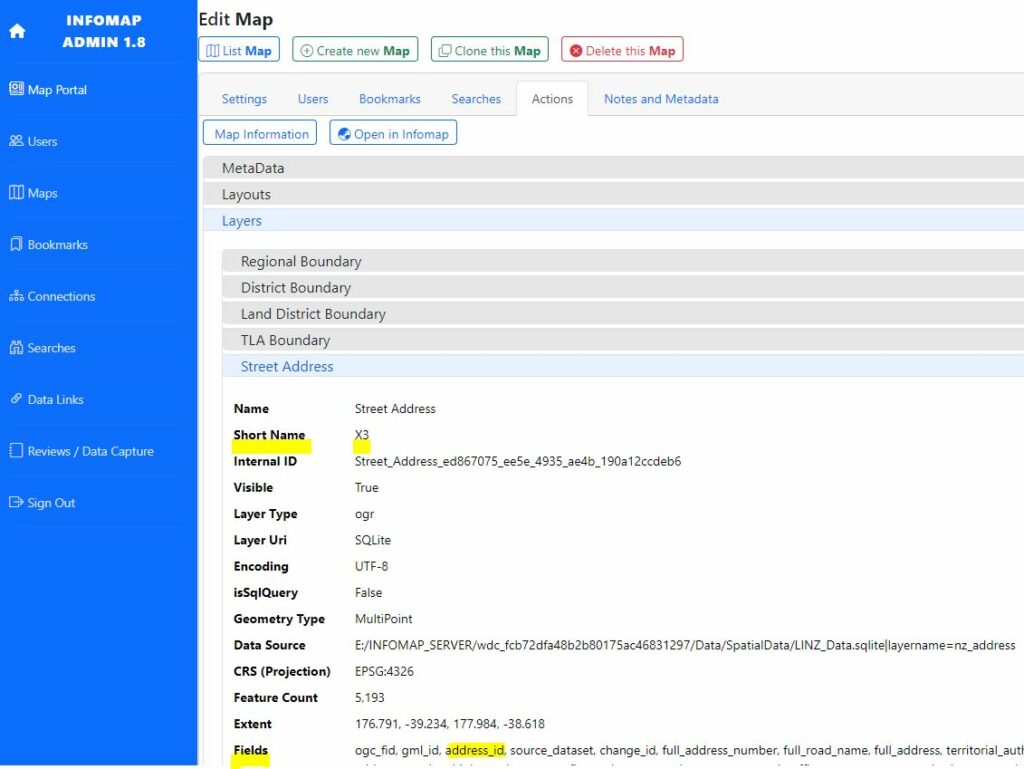
- Click on the “Actions” tab and then click the “Map Information” button
- A list of information will appear showing “MetaData“, “Layouts“, and “Layers“
- Click on the “Layers” and scroll down to the layer that you want to query
- Click on a layer that you want to query. You need to find the “Short Name” and a field under “Fields” e.g. Short Name X3, Field address_id
- Write these down
Creating the AutoSelect URL #
Now that you have the Parameter Values you now simply create the URL.
- Open the Map from the Portal and copy the URL e.g. https://wairoa.infomap.co.nz/?map=337660dbbea24a448f8ec4d65f0e6bcb&extent=177.415537,-39.040198,177.41769,-39.039419
- Append the following text “&autoselect=”
- Add the layer Short Name (or Title), followed by a pipe “|”
- Then add the Field, and a test value as the ID e.g. “&autoselect=LINZ Parcel|Parcel_ID|4159110” OR “&autoselect=X60|Parcel_ID|4159110”
Your final URL should be https://wairoa.infomap.co.nz/?map=337660dbbea24a448f8ec4d65f0e6bcb&extent=176.029816,-39.343856,178.663788,-38.544943&autoselect=Parcel|Parcel_ID|4159110
Configuring the QGIS Map File #
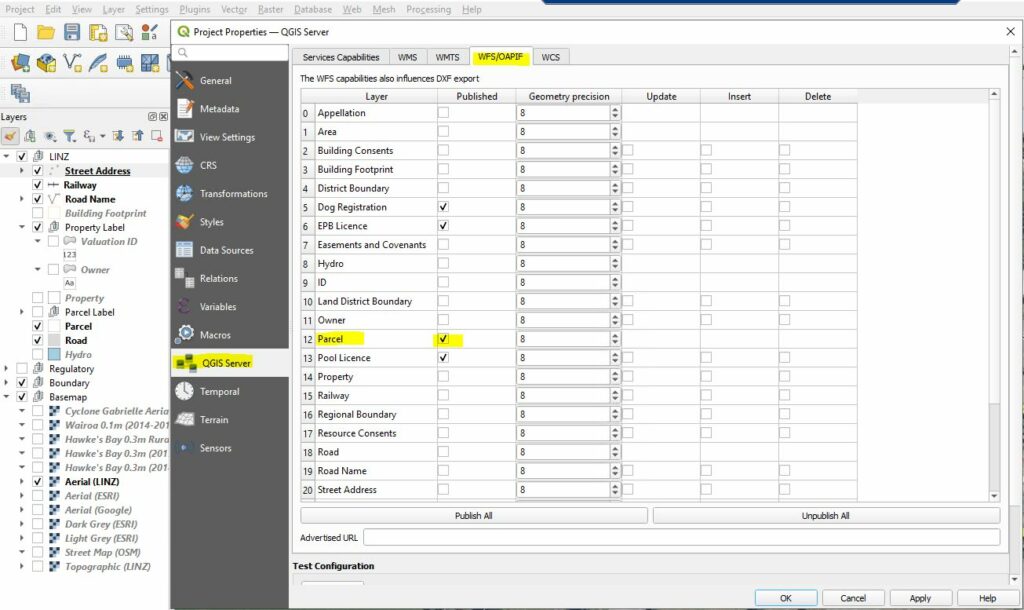
Once you have created the URL you need to ensure that the layer that you want to select in a map is published as “WFS” in the QGIS Server Settings.
- Open the map in QGIS
- Choose the “Project” menu then “Properties“
- When a window appears choose “QGIS Server” from the list and click on the “WFS/OAPIF” tab
- Find the layer you want to publish so the AutoSelect URL work and tick the Published box next to the layer name
- Save your QGIS Project File